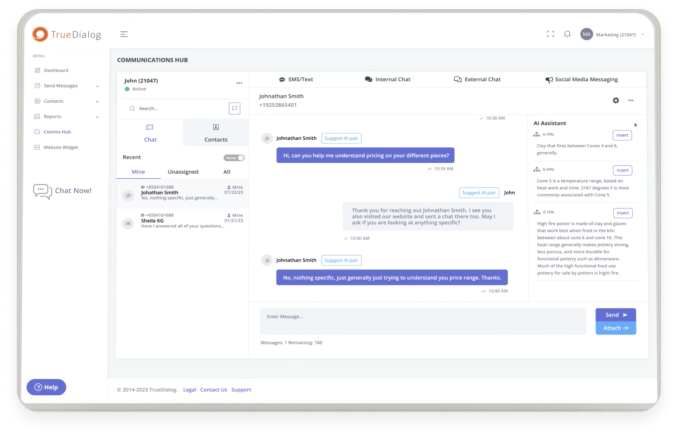

With TrueDialog’s native integration, sending SMS from Microsoft Dynamics 365 is as simple as sending an email. Once the integration is installed, you will be able to send individual text messages to contacts directly from your contact page, as well as mass text messages to entire Marketing Lists, using long code (10-digit) and short code (5- or 6-digit) numbers, respectively. You can also create a Workflow to automatically send a text message to contacts who meet certain conditions.
Contacts will be able to reply to your messages, which will appear as a pop-up inside Dynamics, allowing you to have complete text interactions with your contacts from directly inside the CRM. All text communications will be automatically added to an SMS Activity Log, which you can review under Activities within any Lead or Contact record. When it comes to Dynamics 365 SMS integrations, TrueDialog offers everything you need to swiftly text clients on the enterprise level.
To access both individual SMS and mass SMS capabilities from within Dynamics, install TrueDialog’s native integration. Once you do, your team will open up a new line of communication with your contacts, without having to leave the application or rely on third-party connections. To get started, call the TrueDialog team.
Sending Individual SMS from Dynamics
Sending individual SMS from Dynamics mirrors the process of sending an individual email from Dynamics. Using TrueDialog, an individual SMS will be sent using a long code, meaning it will show up on your contact’s phone as coming from a 10-digit phone number.
To keep communications flowing smoothly, make sure to keep your contact listings up to date, including your contacts’ mobile numbers in order to send SMS.
-
- Start the process of sending SMS by selecting a Dynamics contact.
- In the Activities tab, select Text Message from the dropdown menu.
- Type your message in the Message box.
- When you’re ready, press Save and then press Send to deliver your SMS.
- Because TrueDialog sends messages directly from your CRM, your contact should receive their message soon after you send. A TrueDialog ID will be generated confirming delivery, which you will find in the Activities tab.
Sending Mass SMS from Dynamics
Sending mass SMS from Dynamics requires the use of a Marketing List. This is essentially a group of contacts who meet a set of criteria, determined by you, who you are able to contact in bulk. If you already have your Marketing List set, skip down to the next section.
Creating a New Marketing List
-
- In Dynamics, select Marketing Lists under the Marketing tab, then click New Marketing List.
- In the New Marketing List window, find the Targeted At field under the Information column. Choose your target source, fill in other relevant information, and save.
- In the Members column, select the + button to add new contacts to the list.
- A pop-up will allow you to select how you would like to find contacts, then will allow you to select your desired contacts.
- Press Add to add contacts to your list.
- The pop-up will close, and then your desired contacts should show up under the Members column.
Sending Mass SMS to a Marketing List
-
- If your administrator added the Bulk Text Message item to your navigation menu, click that. If you don’t see the button, you can open it using Advanced Find and selecting Bulk Text Message from the “Look for” dropdown.
- In the pop-up, select a message from your existing Bulk Text, or create a new Bulk Text.
- Select who will send the message in the dropdown menu. Remember that you can only send bulk SMS from a short code, or a 5- or 6-digit number, so you will not see any long code numbers here. Then, type your message in the Message field.
- Select your Marketing List for distribution and then press Send in the top left corner of the window.
- A TrueDialog ID will be generated to confirm that your message was sent.
Creating a Workflow to Send SMS
A Workflow enables you to automatically send a text message to contacts who meet certain conditions. For example, if a contact changes their email address, you can create a workflow to notify your contacts of the change via SMS, or if a contact has a payment due date coming up, you can create a workflow to remind them of the due date and the exact amount due. Workflows are meant to aid the flow of standard processes and keep lines of communication open with routine notices.
-
- 1. Under the Process Center menu, select Processes.
- Click New in the upper left corner.
- In the Create Process wizard, select your Entity. Move through the wizard and fill in relevant fields, then click OK.
- In the Scope dropdown, select Organization.
- Check the box next to Record Field Change and press Select.
- Select the Record Field associated with this process and press OK.
- Select Add Step and, from the dropdown menu, Create Record.
- From the Create dropdown, select Text Message.
- Insert Subject title. In the “To” field, select your contact from the “Look for” dropdown.
- Write your message in the Message field, using dynamic content to personalize messages using the “Look for” field. Click Save and Close in the upper left corner.
- From the Add Step menu, select Change Status.
- In the “Change record status for” line, select “Create (Text Message)” and, in the next field, change to “Sent.” Click Save and Activate to complete the process.
TrueDialog’s native integration makes it easy to send individual and bulk SMS from Microsoft Dynamics 365, mimicking commonly used functionality that exists within the CRM. If you need help moving through any of these processes, call, text, or email the TrueDialog team for one-on-one coaching.